Connection & Sessions
Check how you are connected, manage signed-in devices, join an organization and sign out.
How you are connected, which devices are signed in, and how to join an organization or sign out.
Connection
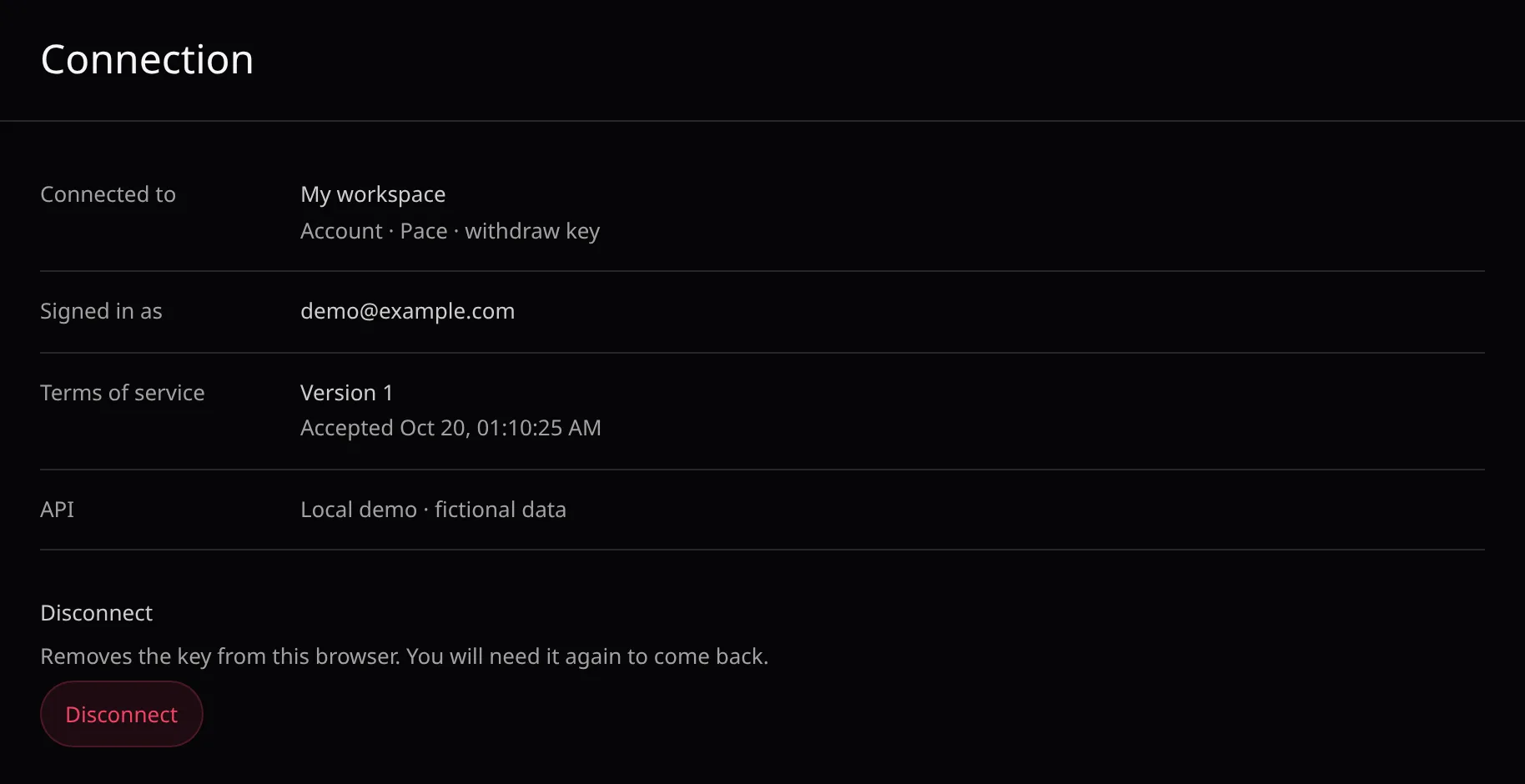
- Connected to: the workspace name, Account or Organization, your tier and the key’s permission.
- Signed in as and Terms of service show for email and passkey sign-ins. API is the Pace API this console talks to.
Disconnect
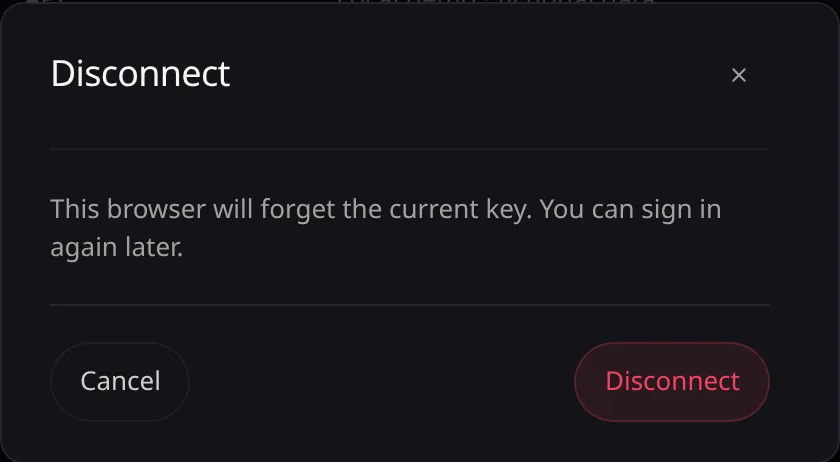
- Disconnect makes this browser forget the key. An email or passkey sign-in is also logged out on Pace.
- Stop owning, for email and passkey sign-ins on an account, removes only your ownership. The last owner of an account outside an organization cannot leave.
Sessions

- The devices signed in with your email or passkey, with their system, browser, IP address and last activity. API keys have none.
- Log Out signs one device out. Revoke all signs out every other device and keeps this one.
Organization
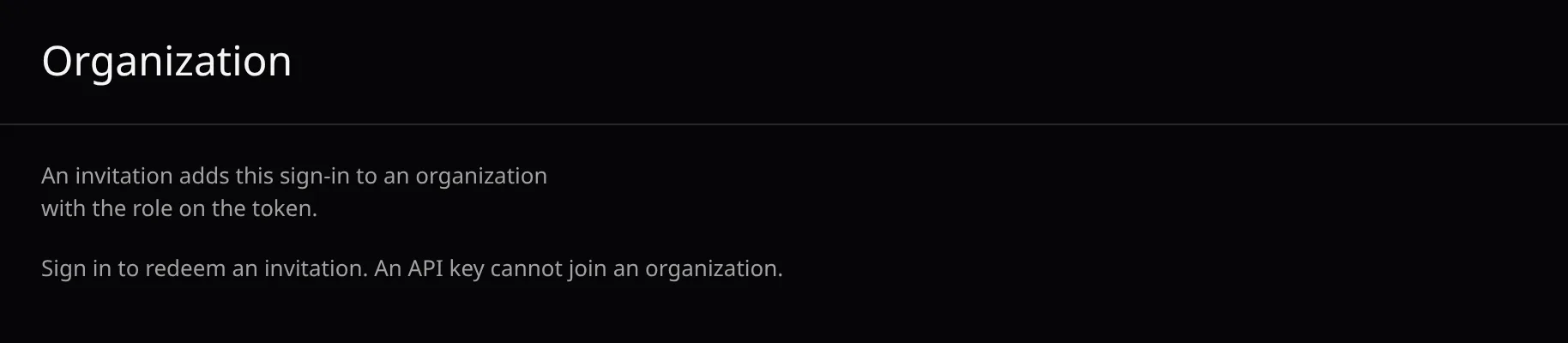
- An invitation adds this sign-in to an organization, with the role it carries. An API key cannot join one.
- Choose Redeem invitation, paste the Invitation (
pacinv_…), then choose Redeem.
If Pace refuses a change, see Troubleshooting.